Introduction: Why Security Matters for Remote Workers
Remote work is now a normal part of life for millions of people. Many employees work from home, coffee shops, or co-working spaces. This shift brings great flexibility and freedom. However, it also brings serious security risks. Hackers know that remote workers often use weaker security setups. They target home networks, personal devices, and unsecured Wi-Fi. One small mistake can lead to a data breach.
A stolen password can expose company secrets. A single infected file can lock your entire system. That is why you need a strong security plan. Windows 11 for Remote Work offers many built-in tools to help you stay safe. This guide will show you how to use them. We will cover every important security feature. You will learn practical steps to protect your data. You will also understand why Windows 11 for Remote Work is the best choice for your daily tasks. Security does not have to be complicated. With the right knowledge, you can work from anywhere with confidence. Let us begin this journey together. Your safety and privacy depend on it.
Understanding the Remote Work Security Landscape
Remote workers face unique threats that office workers rarely encounter. Public Wi-Fi networks are a major danger. These networks are often unencrypted. Hackers can easily intercept your data on them. They can steal login credentials and personal information. Home networks are not much safer. Many people forget to change their router passwords. They also fail to enable WPA2 or WPA3 encryption. This leaves their entire home network exposed. Phishing attacks are another common threat. Remote workers receive many emails every day.
Some of these emails look legitimate. They may appear to come from your boss or IT department. One click on a malicious link can install malware on your device. Ransomware is a growing concern too. This type of malware locks your files. Hackers demand payment to unlock them. Remote workers are prime targets for these attacks. They often lack the same protections as corporate offices. They also handle sensitive data from home.
This makes them valuable to cybercriminals. Physical device theft is also a risk. A lost or stolen laptop can expose all your data. Windows 11 for Remote Work addresses all these threats. It provides a comprehensive security suite. You just need to know how to use it. That is exactly what this guide will teach you.
Windows 11: Built for Security from the Ground Up
Microsoft designed Windows 11 with security as a top priority. It is not just an operating system. It is a security platform. Every layer of the system includes protection measures. The hardware and software work together seamlessly. This creates a strong defense against modern threats. Windows 11 requires specific hardware to run. This includes TPM 2.0 and Secure Boot. These are not optional features.
They are mandatory requirements. This ensures that every Windows 11 device has a baseline of security. The operating system also includes virtualization-based security. This feature isolates critical system processes. It keeps them separate from the rest of the system.
Malware cannot easily reach these protected areas. Windows 11 for Remote Work takes advantage of all these features. It provides a secure foundation for your daily activities. You do not need to be a security expert to benefit. The system handles many protections automatically. However, you can also customize settings to meet your needs. This guide will show you how. We will start with the most important features first. Then we will move to advanced options. Your security journey begins with understanding what Windows 11 offers.
Zero Trust Security: The Core of Windows 11 Protection
Zero Trust is a modern security model. It assumes that no one is trustworthy by default. Every access request must be verified. This applies to both internal and external users. Windows 11 for Remote Work is built on this principle. The system verifies every user and device. It checks their identity, location, and device health. Only then does it grant access. This approach reduces the risk of breaches. Even if a hacker steals a password, they cannot easily gain access. The system will detect unusual behavior. It will block the request if something seems wrong. Windows 11 works with Microsoft Entra ID for identity management. This service provides strong authentication methods
. It supports multi-factor authentication and passkeys. These are much safer than traditional passwords. Windows 11 also uses remote attestation. This feature checks the integrity of your device. It verifies that your system has not been tampered with. Only healthy devices can access corporate resources. This is crucial for remote workers. Your device may connect from various locations. Zero Trust ensures that every connection is secure. Windows 11 for Remote Work makes Zero Trust easy to implement. The features are built right into the system. You just need to enable them.
Hardware-Based Security Features You Can Rely On
Windows 11 leverages hardware-based security for stronger protection. This starts with the Trusted Platform Module or TPM. TPM is a dedicated chip on your motherboard. It stores encryption keys and passwords securely. These keys never leave the chip. This makes them very hard to steal. TPM also measures the boot process. It ensures that your system starts safely. Secure Boot is another important feature. It checks the digital signature of your boot loader. Only trusted software can load during startup. This prevents rootkits and bootkits from infecting your system. Virtualization-based security is also hardware-dependent. It uses the CPU’s virtualization technology.
This creates isolated environments for sensitive processes. Credential Guard is one example. It protects your login credentials inside a virtual container. Even if malware infects your system, it cannot access these credentials. Windows 11 for Remote Work includes all these features. They work together to create a secure environment. You do not need to configure them manually. They are enabled by default on compatible hardware. However, you should verify that they are active. Check your system settings to confirm. These hardware protections are your first line of defense. They make Windows 11 one of the most secure operating systems available.
BitLocker: Protecting Your Data at Rest
BitLocker is a full-disk encryption tool. It protects your data even if your device is lost or stolen. Without BitLocker, anyone can access your files. They can simply remove the hard drive and read it. BitLocker prevents this by encrypting the entire drive. Only someone with the correct key can decrypt it. This key is stored in the TPM chip. It is also backed up to your Microsoft account. BitLocker is available in Windows 11 Pro and Enterprise editions.
It is very easy to enable. Just go to the Control Panel and search for BitLocker. Click “Turn on BitLocker” and follow the prompts. The process takes a few minutes. Once enabled, your drive is fully encrypted. You will not notice any performance impact. The encryption works in the background. For remote workers, BitLocker is essential.
You may carry your laptop to many places. A coffee shop, a client’s office, or a hotel. Any of these locations pose a theft risk. BitLocker ensures that your data remains safe. Even if someone steals your device, they cannot read your files. Windows 11 for Remote Work strongly recommends BitLocker. It is one of the simplest yet most effective security measures. Do not skip this step. Enable BitLocker today and protect your data.
Windows Hello: Say Goodbye to Passwords
Passwords are a weak link in security. People reuse them across multiple sites. They choose simple passwords that are easy to guess. Hackers can crack these passwords with brute force attacks. Windows 11 for Remote Work offers a better solution. It is called Windows Hello. This feature allows you to sign in without a password. You can use your face, fingerprint, or a PIN. These methods are much more secure than passwords. Your biometric data stays on your device. It never leaves your computer. This makes it very hard for hackers to steal.
Windows Hello also supports passkeys. Passkeys are cryptographic keys stored on your device. They replace passwords for websites and apps. Passkeys are resistant to phishing attacks. Even if a hacker tricks you, they cannot steal your passkey. Windows Hello is easy to set up. Go to Settings > Accounts > Sign-in options. Choose your preferred method and follow the instructions. For remote workers, Windows Hello is a game-changer. It eliminates the need to remember complex passwords. It also reduces the risk of credential theft. Many companies now require Windows Hello for their remote staff. It is a key part of Windows 11 for Remote Work security. Make the switch today. Your security will improve significantly.
Microsoft Defender: Your Built-In Antivirus Solution
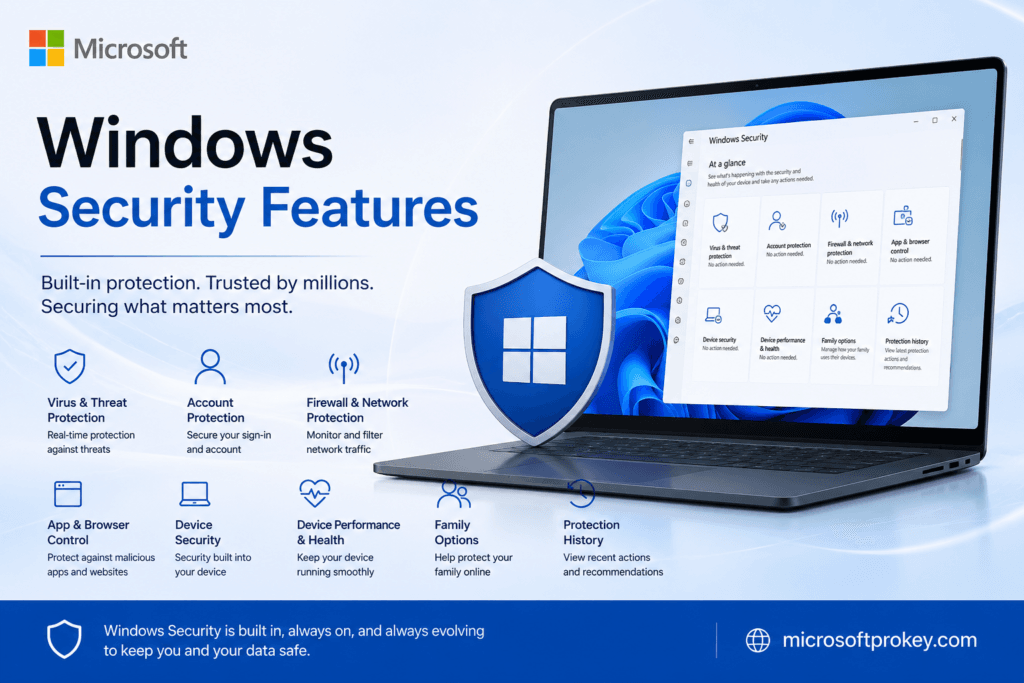
Microsoft Defender is the built-in antivirus for Windows 11. It provides real-time protection against malware. It scans files and applications as you open them. It also monitors your system for suspicious behavior. Defender is free and always up to date. Microsoft updates its threat definitions regularly. This ensures that you are protected against new threats. Defender includes several advanced features. SmartScreen protects against phishing and malicious websites. It checks the reputation of URLs and downloads.
Exploit Protection guards against targeted attacks. It uses memory protection and other techniques. Controlled Folder Access prevents ransomware. It blocks unauthorized apps from changing your files. You can customize these settings to suit your needs. For remote workers, Defender is a vital tool.
You may download files from various sources. You may also visit unknown websites. Defender reduces the risk of infection. It works silently in the background. You will hardly notice it is there. However, you should check its status regularly. Make sure it is enabled and up to date. Windows 11 for Remote Work relies on Defender as a core security component. It is one of the best antivirus solutions available. Trust it to keep your system safe.
Securing Remote Desktop Connections
Remote Desktop Protocol or RDP is a common tool. It allows you to connect to other computers remotely. This is very useful for remote workers. You can access your office PC from home. However, RDP can be a security risk. Hackers often target RDP ports. They use brute force attacks to guess passwords. Microsoft has improved RDP security in Windows 11. The latest updates include new protection features. RDP files now trigger security warnings. The system shows you what resources are being shared. You can control access to your clipboard and drives. These settings are disabled by default. This prevents remote attackers from accessing your files.
Windows 11 also supports RDP Multipath. This keeps connections stable even if network paths fail. It reduces the risk of disconnection during important tasks. For remote workers, these improvements are significant. You can connect to your office with confidence. Always use strong passwords for RDP. Enable network-level authentication as well. This requires users to authenticate before connecting. Windows 11 for Remote Work includes these security enhancements. They make remote desktop connections much safer. Follow best practices to stay protected. Limit RDP access to specific users. Use a VPN for an extra layer of security.
Network Security: VPNs and Firewalls
Network security is critical for remote workers. Your internet connection is the gateway to your data. Without proper protection, hackers can intercept your traffic. Windows 11 for Remote Work includes several network security features. The built-in firewall is one of them. It monitors incoming and outgoing traffic. It blocks unauthorized connections automatically. You can customize firewall rules as needed. The firewall is enabled by default. Keep it on at all times. VPNs are another essential tool. A VPN encrypts your internet traffic. It creates a secure tunnel between your device and the internet. This prevents eavesdropping and man-in-the-middle attacks.
Windows 11 supports Always On VPN. This feature connects automatically when you go online. It works seamlessly in the background. You do not need to manually start the VPN. Always On VPN also supports device and user authentication. This ensures that only authorized devices can connect. For remote workers, a VPN is a must-have. It also masks your IP address. Windows 11 for Remote Work integrates VPN and firewall features. They work together to keep your network safe. Configure them properly for maximum protection.
Keeping Windows 11 Updated: The Simple Security Fix
Software updates are not just about new features. They also include critical security patches. Hackers constantly find new vulnerabilities. Microsoft fixes these vulnerabilities through updates. If you delay updates, you remain exposed. Windows 11 for Remote Work makes updating easy. The system downloads updates automatically. It installs them during off-hours. You can also check for updates manually. Go to Settings > Windows Update. Click “Check for updates” to see what is available. Install updates as soon as possible. Do not postpone them for weeks. Security updates are usually small. They do not take long to install. Feature updates are larger but less frequent.
These also include security improvements. Keep your system updated at all times. This is one of the simplest security measures. Yet many people ignore it. Remote workers are especially vulnerable. They may not have IT staff to manage updates. You are responsible for your own system. Make updates a regular habit. Check for updates at least once a week. Enable automatic updates to simplify the process. Windows 11 for Remote Work prioritizes security updates. They are released on “Patch Tuesday” each month. Install them promptly to stay protected.
Application Control and Privacy Settings
Not all applications are safe. Some may contain malware or spyware. Others may request unnecessary permissions. Windows 11 for Remote Work includes application control features. Smart App Control blocks untrusted applications. It uses AI to determine if an app is safe. This feature is enabled by default on new devices. Keep it turned on for continuous protection. You can also use App Control for Business. This allows IT administrators to whitelist approved apps. Only these apps can run on your system. This is very effective against malware.
Privacy settings are equally important. Many apps request access to your camera, microphone, and location. Review these permissions carefully. Go to Settings > Privacy & security. Check each category and disable unnecessary access. Limit app permissions to only what is needed. This reduces your exposure to data leaks. Windows 11 also includes diagnostic data settings. You can choose what data to share with Microsoft. Basic diagnostic data is sufficient. It helps Microsoft improve the system. Disable optional diagnostic data for more privacy. Windows 11 for Remote Work gives you control over these settings. Take a few minutes to review them. Your privacy and security will benefit.
Why Choose Windows 11 Pro for Remote Work
Windows 11 Pro is the ideal choice for remote workers. It includes all the security features we have discussed. BitLocker, Windows Hello, and Defender are all included. The Pro edition also offers advanced management tools. These are valuable for IT administrators. You can enforce security policies across your organization. Windows 11 Pro supports Azure Active Directory. This enables seamless single sign-on. It also supports Microsoft Intune for device management. These tools make remote work easier and safer.
Many companies now require Windows 11 Pro for their staff. It provides the security and control they need. If you are setting up a new device, choose Pro. The extra cost is worth the investment. Your data and privacy are priceless. Microsoftprokey offers genuine Windows 11 Pro keys at affordable prices. Visit Microsoftprokey to get your license today. A legitimate license ensures you receive all security updates. It also provides access to premium features. Do not risk using unauthorized versions. They may lack critical security patches. Windows 11 for Remote Work is most effective with a genuine license. Choose Pro for the best security experience. Your remote work setup will be robust and reliable.
Conclusion: Building Your Remote Work Security Routine
Security is not a one-time task. It is an ongoing process. You must build a routine that keeps you protected. Start with the basics. Enable BitLocker to encrypt your drive. Set up Windows Hello for passwordless sign-in. Keep Microsoft Defender active and updated. Use a VPN whenever you connect to public networks. Review your privacy settings regularly. Install updates as soon as they become available. These steps are simple but powerful. They address the most common threats remote workers face. Windows 11 for Remote Work provides all the tools you need. You just have to use them consistently. Remember that hackers are always looking for weaknesses.
Do not give them an opportunity. Stay vigilant and cautious. Think before you click on links or download files. Verify the source of every email. Use strong, unique passwords for all your accounts. Enable multi-factor authentication wherever possible. These habits will significantly reduce your risk.
Your employer also has a role to play. They should provide security training and resources. They should also enforce security policies. Work together to create a secure remote environment. Windows 11 for Remote Work is your partner in this effort. It offers enterprise-grade security for everyone. Take advantage of its features. Protect your data, your privacy, and your peace of mind. Remote work is here to stay. Make sure you are prepared for it. Stay safe, stay secure, and stay productive.
FAQ’s
Q1: What makes Windows 11 for Remote Work more secure than Windows 10?
Windows 11 requires hardware-based security features like TPM 2.0 and Secure Boot. It also includes virtualization-based security by default. These features provide stronger protection against modern threats compared to Windows 10.
Q2: Is Windows 11 Pro necessary for remote work security?
Windows 11 Pro includes advanced security tools like BitLocker, Windows Hello, and Hyper-V. These are essential for protecting sensitive data. The Pro edition also supports enterprise management features. It is highly recommended for remote workers.
Q3: How do I enable BitLocker on Windows 11 for Remote Work?
Go to Control Panel and search for “BitLocker Drive Encryption”. Click “Turn on BitLocker” for your system drive. Follow the on-screen instructions to save your recovery key. The encryption process will start automatically.
Q4: Can I use Windows 11 for Remote Work without a VPN?
You can, but it is not recommended. A VPN encrypts your internet traffic and protects your data on public networks. Windows 11 supports Always On VPN for seamless protection. Always use a VPN when working remotely.
Q5: How often should I update Windows 11 for Remote Work security?
You should install security updates as soon as they are available. Enable automatic updates to simplify this process. Check for updates manually at least once a week to ensure you are fully protected.