Just a few years ago, people all over the world rushed into conference rooms for meetings. Employees filled offices with buzzing conversations. But things changed overnight. Remote work became the new normal. Many teams now work from home or even across continents. This change brought its own set of problems. Communication, collaboration, and keeping work on track became harder than ever.
Sarah, a project manager at a mid-sized tech firm, struggled during the early months of remote work. She and her team had great talent but lacked the right tools. Sharing files became confusing. Video meetings were unreliable. Each team member used different platforms. Deadlines slipped. Morale went down.
Then, Sarah discovered Microsoft Office 365. It changed her team’s workflow from scattered to seamless. Within weeks, productivity improved. Meetings got better. Work got done faster. Tasks became clearer. Why? Microsoft Office 365 combines powerful features designed to support modern, remote teams.
This guide explores the Top 10 Microsoft Office 365 Features that make remote work productive and simple. You’ll learn how each tool helps boost teamwork, reduce confusion, and speed up projects. Whether you run a small startup or a large business, this article shows how Microsoft Office 365 features can transform remote work.
Microsoft Teams – The Heart of Remote Collaboration
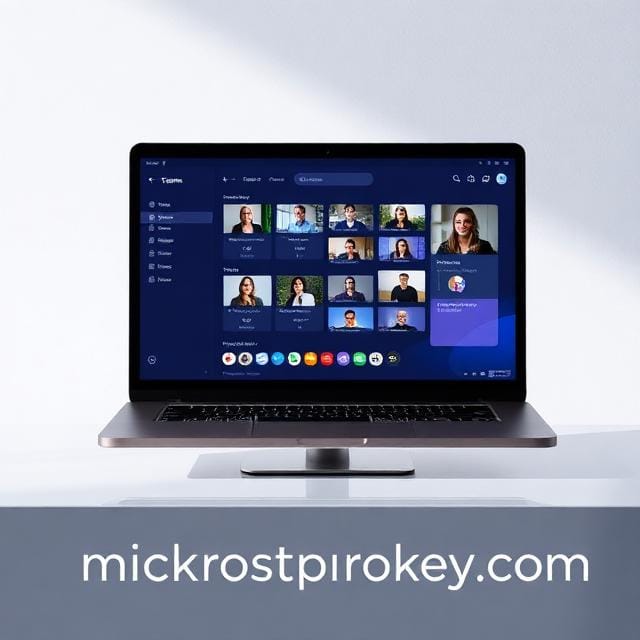
When teams go remote, communication becomes tougher. Microsoft Teams solves that problem fast. This is the number one tool inside Microsoft Office 365 features that powers teamwork. It combines chat, video calls, file sharing, and teamwork hubs—all in one place.
Microsoft Teams lets teams create channels for projects. You can message anyone in real time. You can share documents without sending emails. Teams also supports high-quality video calls with screen sharing. All meetings, chats, and files stay in one platform. That makes it easier to find what you need. Everything is secure and backed up, too.
In remote work, staying connected is vital. Microsoft Teams gives you that connection, with stronger collaboration. It helps avoid long email chains and scattered messages. Team members save time. Meetings are faster. Workflows are clearer.
Each feature in Teams serves a clear purpose. You can pin important posts. Add apps like Planner or OneNote. You can even share PowerPoint slides during a call. Teams also integrates perfectly with Outlook and Calendar.
This all-in-one hub brings teams together even when they are apart. It’s the backbone of effective remote collaboration across every time zone.
OneDrive – Secure Cloud Storage for All Files
Imagine losing access to your files while working remotely. That delay can ruin your schedule. OneDrive, one of the best-known Microsoft Office 365 features, solves this issue with ease. It gives you secure cloud storage anytime and anywhere. Your files stay safe and are only accessible to you or your team.
With OneDrive, every file you save can be accessed across multiple devices. You don’t need a USB or hard drive anymore. Upload documents, pictures, videos, and spreadsheets in seconds. Set permissions easily. You can give view-only access or allow others to edit.
OneDrive also backs up files automatically. It prevents loss or damage due to system crashes. If you delete a file by mistake, restoring it is easy. OneDrive keeps older versions for a limited time.
Another helpful part is sharing links. Instead of sending bulky attachments through email, share a simple link. Others click and see or edit the file. This makes file sharing smoother and more professional.
Remote teams using OneDrive notice better organisation. They can access files faster. Team leads monitor changes, and updates happen in real-time. If your team is remote, OneDrive is not just helpful—it’s essential.
SharePoint – Centralised Document Management
If you’re managing remote teams, storing files in just one place is never enough. You also need to manage how those files are used and updated. That’s exactly what SharePoint does. It’s one of the most effective Microsoft Office 365 features for document management.
SharePoint builds a centralised hub for your company’s files. You can create internal websites for projects or departments. Employees access the latest versions of important documents from anywhere in the world.
This tool prevents version confusion. It stops different team members from editing the wrong file. You can even create workflows to approve documents before posting them.
SharePoint works directly with other Office 365 apps. You can add Excel sheets, Word files, or PowerPoint slides from just one interface. That reduces wasted time. It creates better focus.
It also includes security controls. You decide who accesses what. You create folders with limited viewing or editing rights. In remote settings, this level of control is very important.
With SharePoint, everyone sees the latest updates. It keeps files organised, accessible, and secure. It’s more than storage; it’s smart file management.
Outlook – Smarter Email and Scheduling
In any remote team, email and calendars are key tools. Microsoft Office 365 features make Outlook smarter and easier to use. You get powerful communication along with stress-free scheduling.
Outlook organises your work emails using focused inboxes. Important messages stay at the top. Less urgent ones are sorted into another tab. This saves time and reduces clutter.
But Outlook is more than just email. Its calendar feature shines in remote work. You can see when your teammates are free. You suggest meeting times that suit everyone. Reminders help you stay on track.
Another great feature is the ability to create rules. If you keep getting emails from a certain team, move them to a special folder. Everything gets sorted automatically.
Outlook connects with Teams and Planner, too. If you schedule a meeting, Outlook adds it to your Teams calendar. This keeps team members in sync.
Simple. Fast. Organized. That is what Outlook brings to your remote work experience.
Planner – Easy-to-Use Team Task Management
Organisation is very important in remote teamwork. Without daily check-ins, tasks can fall behind. Microsoft Office 365 features include a gem—Planner. It helps assign work, track progress, and finish tasks on time.
Planner is like a digital task board. You create lists of tasks within “plans.” Each task can have a deadline, a checklist, an owner, and notes. You can drag tasks around as work moves forward.
It works perfectly inside Microsoft Teams, which boosts efficiency. You assign tasks to team members and check back later to see the progress. No need for separate tracking tools.
Everyone stays updated without sending extra emails. It cuts confusion and boosts clarity. You see what’s pending and what’s done.
Especially in remote work, where face-to-face reminders aren’t possible, Planner keeps your projects alive and running.
Power Automate – Automate and Streamline Remote Workflows
Remote work often involves repetitive tasks. Power Automate helps you save time by simplifying those tasks. It’s one of the smartest Microsoft Office 365 features made for automation.
You set up rules, and Power Automate runs tasks for you. For example, move email attachments to OneDrive. Or post updates to a Teams channel whenever someone submits a form.
This tool connects with hundreds of apps. You don’t need coding skills to use it. You select a template. You change the steps. Everything becomes automatic.
By cutting manual work, your team focuses more on strategy, not routine. Even simple tasks like sending birthday messages or approval notifications can be automated.
This boosts accuracy. It saves time. It reduces human error. For remote teams, this is a huge win.
To Do – Keep Individual Tasks Organised
For solo work, To Do is very useful. Another tool from the Microsoft Office 365 features lets you manage daily tasks easily and clearly.
You list what needs to get done today, tomorrow, or later. You can drag tasks from Outlook. You assign due dates and reminders.
To Do is more about personal productivity. But it supports team goals because organised individuals form organised teams. You know your plan. You track your progress.
It syncs across all your devices. You can check your lists even on your phone. Everything stays up to date.
When everyone on a remote team uses To Do, meetings become shorter. People already know their next steps.
Word, Excel, and PowerPoint Online – Real-Time Co-Authoring
Your remote team probably uses Word, Excel, or PowerPoint. But using the online versions that come with Microsoft Office 365 features changes the game. These apps support real-time co-authoring.
You and your teammate can edit the same document instantly. No more saving different versions like draft1, draft2, etc. No more wondering who made what change.
If someone updates a slide in PowerPoint, you see it instantly. If someone adds a chart in Excel, it saves right away. The edit history is there too.
Everyone stays on the same page. Feedback happens faster. Files are never lost. Everything saves to OneDrive or SharePoint.
These online tools work well inside Teams, too. Open a document, start editing, and chat about it—all in one place.
That is real productivity.
Microsoft Forms – Collect Remote Feedback Effortlessly
Surveys and forms are part of standard office work. With Microsoft Office 365 features, Forms makes feedback easy—even for remote teams.
You create surveys in minutes. Add multiple choice, rating, or text responses. Share with your team through a link or email.
After that, Forms collects everything into neat reports. You can see charts. Export results to Excel for deeper analysis.
Need to know how your team feels? Ask. Forms give fast results.
This is great for HR check-ins, training feedback, or project reviews. Easy to use. Fast to set up. Simple to understand.
Microsoft Whiteboard – Brainstorm Together from Anywhere
Whiteboards are not just for office walls anymore. Microsoft Whiteboard takes brainstorming online. As one of the most creative Microsoft Office 365 features, it helps teams think visually—even miles apart.
Create flowcharts, draw diagrams, or write notes. Your whole team can work on one canvas. Everyone sees real-time updates.
It works with a stylus, a mouse, or a keyboard. Share it during Teams meetings. Keep the whiteboard live even after the call.
Remote teams use it to plan strategies, sketch ideas, and map workflows. No high skills needed. Just start drawing.
Seamless Integration Between Tools
One strong reason why people love Microsoft Office 365 features is integration. One app talks to another. There’s no need to jump between software.
Open a document from OneDrive inside Teams. Create tasks in Planner from Outlook. Share Word files directly in conversations. It all connects.
This integration saves time. You stay in one system. You reduce learning curves. Team collaboration becomes smooth and fast.
Enterprise-Grade Security Features
Using cloud tools means keeping data safe. Microsoft Office 365 features include top-grade security. Your emails, files, and meetings all stay protected.
There is data encryption. There are spam filters. There is multi-factor login. Admins can control user access. You also get alerts if there’s a threat.
That’s peace of mind, especially for companies that handle sensitive client data.
Constant Updates – Always Stay Current
Apps inside Microsoft Office 365 update automatically. You always have the newest version. No manual installations. No extra cost.
You get new features often. Security patches roll out fast. Your team stays ahead.
That reduces risks. It also improves productivity with modern tools.
Buy Office 365 at Discounted Rates from Microsoftprokey
If you’re ready to give your remote team a boost, get Office 365 now. Buying directly can be expensive. But you can save big with a verified, discounted license at Microsoftprokey.
They offer real activation keys at unbeatable prices. That means you get all the Microsoft Office 365 features without paying a fortune. Perfect for startups, SMBs, or even large enterprises.
Conclusion
Remote work is not going away. In fact, it’s growing. Teams need smart, simple tools to stay productive and connected. That’s where Microsoft Office 365 features shine.
From communication apps like Teams to tracking tools like Planner, every feature brings value. These tools help your team save time, reduce errors, and improve output. File sharing becomes easier. Task tracking becomes smoother. Meetings become shorter and productive. You work smarter—not harder.
And when everything integrates—security included—your teams gain speed and power. You’ll notice the difference in deadlines, teamwork, and results.
To stay ahead in the remote work world, the right software is key. Trust Microsoft Office 365. Adopt these top features today. Your team will thank you. Your clients will, too.
FAQ’s
1. What’s the best Microsoft Office 365 feature for team meetings?
Microsoft Teams is best for remote meetings. It allows video calls, chat, and file sharing in one app.
2. How do I share files securely in Microsoft Office 365?
Use OneDrive or SharePoint. Both give secure cloud storage and easy sharing with set permissions.
3. Can I track progress on team tasks using Microsoft Office 365?
Yes. Use Planner for team tasks and To Do for personal tasks. Both keep your progress organised.
4. Is Microsoft Office 365 safe for sensitive data?
Absolutely. It has built-in encryption, alerts, and admin controls to protect data.
5. Where can I get Office 365 at a lower price?
You can buy licensed software at discounted rates from Microsoft ProKey.
Thanks for reading.