Introduction
Last Tuesday, my friend called me in a panic. His computer screen showed a scary message. He had no idea what to do. He thought about buying a key from a random website. I have seen too many people waste money on fake keys. They lose their cash and still get no activation. That is why I decided to write this Windows digital license buying guide. I want to save you from the same trouble.
A Windows digital license is not hard to understand. You just need the right information. This guide will walk you through every step. You will learn what a digital license really is. You will know where to buy one safely. You will also learn how to avoid scams. By the end, you will feel confident. You will make a smart purchase. Let us start this journey together. Your Windows activation journey begins here.
What Is a Windows Digital License?
A Windows digital license is a modern activation method. It does not use a 25-character product key. Instead, it links your Windows copy to your Microsoft account. This link happens online through Microsoft servers. The system remembers your device hardware too. This method is also called a digital entitlement. It first appeared with Windows 10 upgrades. Now it works for Windows 11 as well. You do not type any code during installation. The activation happens automatically in the background.
Your PC connects to the internet. Microsoft checks your account and hardware. Then it activates your Windows copy instantly. This process is smooth and user-friendly. Many people prefer this over old product keys. It removes the hassle of typing long codes.Understanding this is the first step in Windows digital license buying.
Digital License vs Product Key – The Real Difference
A product key is a 25-character code. You type it manually during setup. A digital license is different. It does not need any code entry. The license lives in the cloud. It connects to your Microsoft account. This makes reactivation much easier. You can reinstall Windows many times. You do not need to find your old key. Just sign in with your Microsoft account. Windows will activate itself again.
Product keys can get lost or stolen. Digital licenses stay safe in your account. They offer better security overall. However, product keys still have their uses. They work offline without internet access. They also allow manual transfer in some cases. But for most home users, a digital license is better. It offers convenience and peace of mind. That is why Windows digital license buying is so popular today.
How Does a Digital License Work?
The system works through hardware identification. Microsoft captures your device’s unique ID. This ID includes your motherboard details. It also notes your processor and other components. When you install Windows, it checks this ID. It also checks your Microsoft account login. If both match, activation happens instantly. You do not see any pop-ups or warnings. The whole process takes just seconds. This works because Microsoft stores your license online. Their servers keep a record of your activation.
They know which devices belong to your account. You can even view your linked devices online. Go to your Microsoft account page. You will see all your activated PCs there. This system makes hardware upgrades tricky though. Changing your motherboard may break the link. But you can use the activation troubleshooter to fix it. This tool lets you transfer your license to new hardware. Understanding this helps in Windows digital license buying decisions.
Types of Windows Licenses – Retail, OEM, and Volume
Windows comes in three main license types. Retail licenses are for individual buyers. You buy them from stores or online. They are fully transferable to new PCs. OEM licenses come with pre-built computers. They are tied to the original hardware. You cannot move them to a new motherboard. Volume licenses are for big organizations. They activate many computers at once. Each type has its own rules and prices.
Retail costs the most but offers flexibility. OEM costs less but stays with one PC. When doing Windows digital license buying, know which type you need. Most home users choose retail or OEM. Retail gives you freedom to upgrade later. OEM saves money if you keep your PC. Choose based on your future plans. Think about whether you will change hardware soon.
Retail License Explained Simply
A retail license is the most flexible option. You buy it directly from Microsoft or authorized sellers. It costs more than other types. Windows 11 Home retails for $139. Windows 11 Pro costs $199. But you get full transfer rights. You can move this license to a new PC later. You just need to deactivate the old one first. Then activate it on your new machine. This license also allows unlimited reinstalls.
You can wipe your computer and start fresh anytime. Your digital license stays linked to your account. You never lose your activation status. This makes retail perfect for PC builders. It also suits people who upgrade often. The extra cost gives you peace of mind. You own the license forever. There are no subscription fees. It is a one-time purchase for life. That is why many prefer retail in Windows digital license buying.
OEM License Explained Simply
OEM stands for Original Equipment Manufacturer. These licenses come with new computers from brands like Dell or HP. They are pre-installed at the factory. You cannot buy them separately in most cases. But some online stores sell OEM keys too. These keys cost much less than retail. You might find Windows 11 Pro for under $30. However, they have strict limitations. An OEM license ties itself to your motherboard. You cannot transfer it to another PC. If your motherboard dies, your license dies too.
You would need to buy a new one. OEM also offers no Microsoft support. You must contact your PC maker for help. Reinstalling Windows is still possible though. The license stays with that specific hardware. This option works well for budget buyers. It is fine if you never change your motherboard. Just know the risks before buying. OEM is common in Windows digital license buying for cheap deals.
Digital License vs Product Key – Which One Should You Choose?
Your choice depends on your needs and situation. A digital license offers the easiest experience. You never type or save a product key. Everything happens automatically online. This works great for most home users. It is also perfect for less tech-savvy people. A product key gives you more control. You can use it offline anytime. You can also share it across devices (one at a time). But you must keep the key safe and secure. Losing it means losing your activation.
Digital licenses remove that risk entirely. They live safely in your Microsoft account. For new PC buyers, digital is the way to go. For offline installations, a product key is better. Consider your internet access and habits. Also think about your comfort with technology. Windows digital license buying should match your lifestyle. Choose what makes you feel most secure.
Where to Buy a Windows Digital License Safely
The safest place is the Microsoft Store. You can buy directly from Microsoft’s website. You can also use the Store app on your PC. Go to Settings > System > Activation. Click “Go to Store” to start your purchase. This method guarantees a genuine license. It links directly to your Microsoft account. Another safe option is authorized retailers. Amazon sells official Microsoft licenses.
Just check the seller is Microsoft itself. Best Buy and Newegg are also trustworthy. They sell digital licenses and physical copies. Always read the product description carefully. Look for “Digital License” or “Official Microsoft”. Avoid sellers with prices too good to be true. If it costs $5, it is almost certainly fake. Remember, Windows 11 Home costs $139 officially. Any huge discount should raise red flags. Smart Windows digital license buying means choosing trusted sources.
How to Buy a Digital License from Microsoft Store
Buying from Microsoft is very straightforward. First, open the Settings app on your PC. Go to System and then Activation. You will see a link saying “Go to Store”. Click that link to open the Microsoft Store. The Store will show you available editions. Choose Windows 11 Home or Pro. Then complete your payment with a credit card. You can also use PayPal in some regions. After payment, the license links to your account automatically.
You do not receive a product key via email. The digital license lives in the cloud. Your PC will activate within minutes. Make sure you are signed in with your Microsoft account. This account must match the one used for purchase. That is all there is to it. No codes to type or save. No risk of losing your activation. This is the easiest Windows digital license buying method available.
How to Buy from Authorized Resellers
Many trusted resellers offer Windows digital licenses. These include large retailers like Amazon and Newegg. They sometimes have discounts compared to Microsoft. But you must verify they are authorized. Look for “Sold by Amazon” or “Sold by Newegg”. Avoid third-party sellers on these platforms. They may sell fake or volume license keys. Read customer reviews before buying. Check if the license is a digital download. Make sure it is for the correct Windows version. Some sellers offer OEM keys at lower prices.
These are legitimate but have transfer limits. Understand what you are buying. The product page should clearly state the license type. It should also mention if it is retail or OEM. Keep your receipt and order confirmation email. You may need them for future support. Some resellers also offer instant email delivery. This is convenient for quick activation. Always compare prices across trusted stores. Windows digital license buying from resellers can save money safely.
Red Flags – How to Spot Fake or Scam Licenses
Scammers are everywhere in the software world. They target people looking for cheap deals. The biggest red flag is an extremely low price. If Windows 11 Pro costs $10, it is fake. Official price is $199 for retail. Even OEM keys rarely go below $20. Another red flag is a seller with no reviews. Always check the seller’s history and ratings. Look for complaints about non-working keys. Some scammers sell volume license keys illegally. These keys work for a few months. Then Microsoft disables them remotely.
You lose both money and Windows Digital License . Be careful of websites that look unprofessional. Check for proper contact information and support. Legitimate sellers provide invoices and receipts. They also offer customer service. If a seller asks for remote access, run away. They might install malware on your PC. Trust your instincts and do your research. Smart Windows digital license buying means avoiding these traps.
Step-by-Step Activation Guide
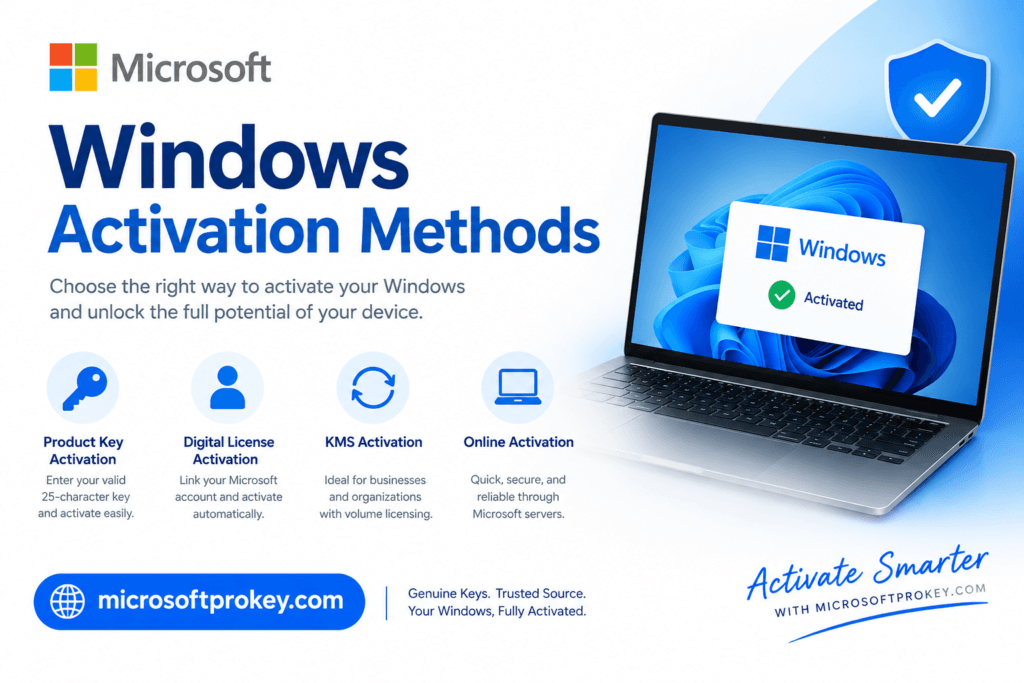
Activating your digital license is simple. First, install Windows on your PC. During setup, skip the product key prompt. Complete the installation process normally. Then connect your PC to the internet. Go to Settings > System > Activation. Sign in with your Microsoft account. Windows will check your license online. If you have a valid digital license, it activates. You will see “Windows is activated” on the screen.
If you bought from the Microsoft Store, this happens automatically. If you bought a key from a reseller, enter it in the Activation page. Click “Change product key” and type your 25-character code. Then click Next and wait for confirmation. Your license will then link to your account. This makes future reinstalls easier. You can also run the activation troubleshooter if needed. This tool fixes Windows Digital License activation errors. Following these steps makes Windows digital license buying worthwhile.
Transferring Your Digital License to a New PC
Transferring a digital license is possible with retail versions. OEM licenses cannot be transferred. First, check your license type in Settings. Go to Activation and look for the license type. If it says “Retail”, you can transfer it. If it says “OEM”, you cannot move it. To transfer, sign in to your new PC with the same Microsoft account.
Go to Settings > Update & Security > Activation. Run the activation troubleshooter. Select “I changed hardware on this device”. Follow the on-screen instructions to complete the transfer. The old PC will lose its activation automatically. You do not need to manually deactivate it. This process works for both Windows 10 and 11. Make sure your new PC has the same edition (Home or Pro). You cannot transfer a Home license to a Pro installation. Understanding transfer rights helps in Windows digital license buying.
Frequently Asked Questions
Q1: Can I buy a Windows digital license without a Microsoft account?
No, a digital license requires a Microsoft account. The license links directly to your account for activation. You can create a free account during the purchase process.
Q2: How much does a Windows digital license cost in 2026?
Windows 11 Home costs $139 from the Microsoft Store. Windows 11 Pro costs $199. Third-party resellers may offer lower prices for OEM versions.
Q3: Is a digital license better than a product key?
For most users, yes. A digital license offers easier reactivation and better security. You never lose your key because it stays in your Microsoft account.
Q4: Can I use the same digital license on two PCs?
No, one license activates only one PC at a time. You can transfer a retail license to a new PC, but you must deactivate the old one first.
Q5: What happens if I change my motherboard?
For OEM licenses, you lose activation and need a new license. For retail licenses, you can use the activation troubleshooter to transfer it to the new hardware.
Conclusion
Buying a Windows digital license does not have to be confusing. I have walked you through everything you need to know. You now understand what a digital license really is. You know the difference between retail and OEM. You also know where to buy safely and where to avoid. The Microsoft Store remains the safest choice for Windows digital license buying. It guarantees a genuine license every time.
Authorized resellers can also be trusted if you check carefully. Always avoid deals that seem too good to be true. A $5 Windows key is almost always a scam. Remember that a retail license offers the most flexibility. You can transfer it to new PCs in the future. An OEM license saves money but stays with one motherboard. Choose based on your needs and budget.
Activation is simple and straightforward. Just sign in with your Microsoft account. Windows does the rest automatically. If you change hardware, use the troubleshooter to transfer your license. This process works smoothly for retail licenses. For the best deals and genuine licenses, consider trusted sellers. One such trusted source is Microsoftprokey. They offer authentic Windows digital licenses at competitive prices.
You can visit https://microsoftprokey.com/ to explore their options. They provide instant delivery and reliable customer support. This makes your Windows digital license buying experience smooth and stress-free. Take your time and make an informed choice. Your PC deserves a proper license.
A genuine license gives you security, updates, and peace of mind. You avoid the risks of malware and activation failures. You also support Microsoft’s continued development. So go ahead and make your purchase today. Enjoy a fully activated Windows experience. You have all the knowledge you need. Now it is time to take action. Happy computing!